Animation Sprite Sheet — The Complete Guide
This guide covers all four steps of the "Animation sprite sheet" tool in detail, option by option. If you're new, skim the Quick Start guide first for the overall flow.
Step 1 — Upload and refine the cutout
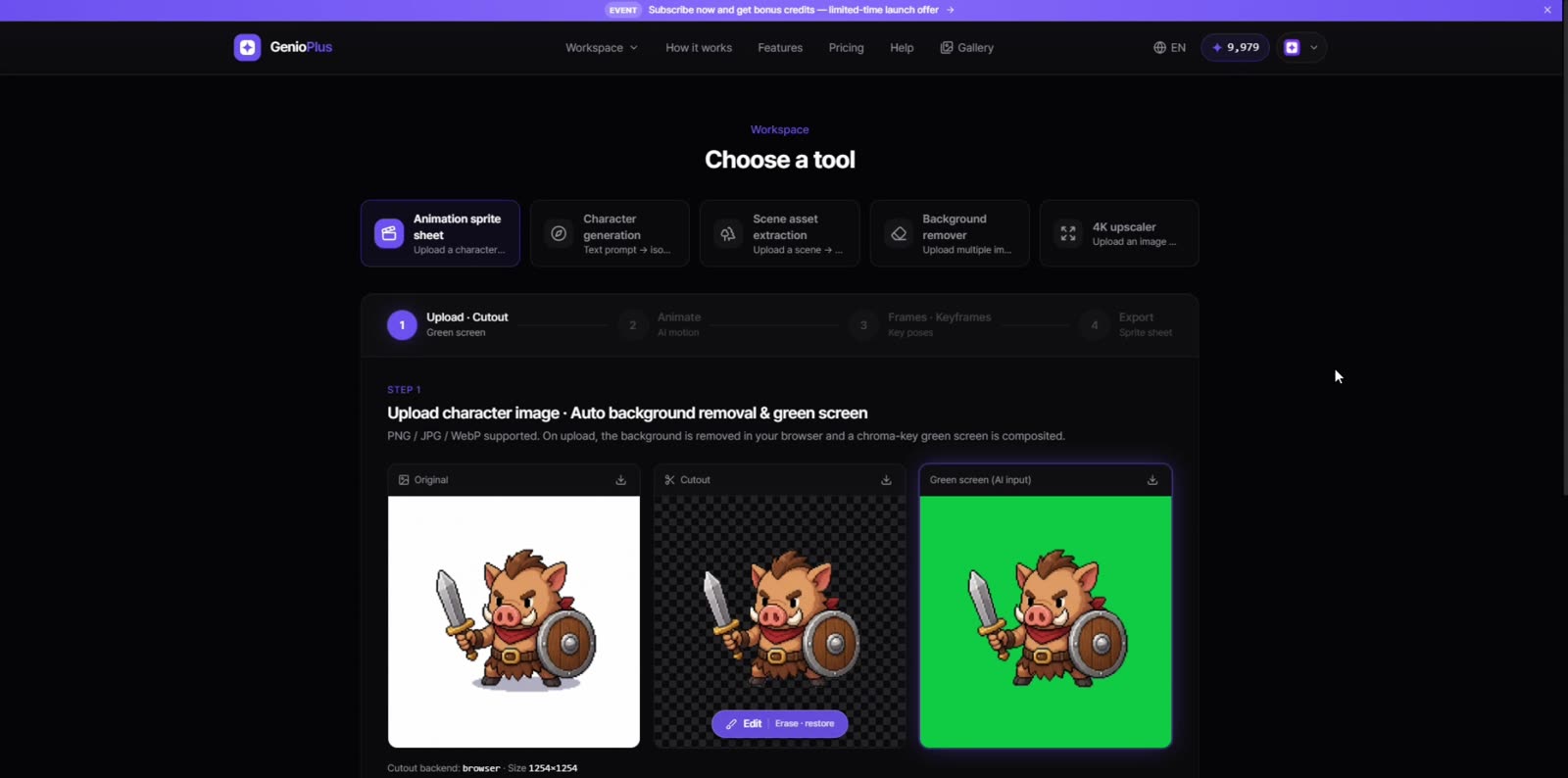
After upload you'll see three panels side by side: the original, the background-removed cutout, and the green-screen version. If the cutout isn't perfect, adjust the "Character detail protection" slider — raise it when parts of the character get erased, lower it when background residue remains. The "Edit" button opens three tools: the wand (erase a connected patch of similar color in one click), the restore brush (paint erased parts back in), and the eraser (wipe away leftover bits by hand).
Step 2 — Prompt and generation options
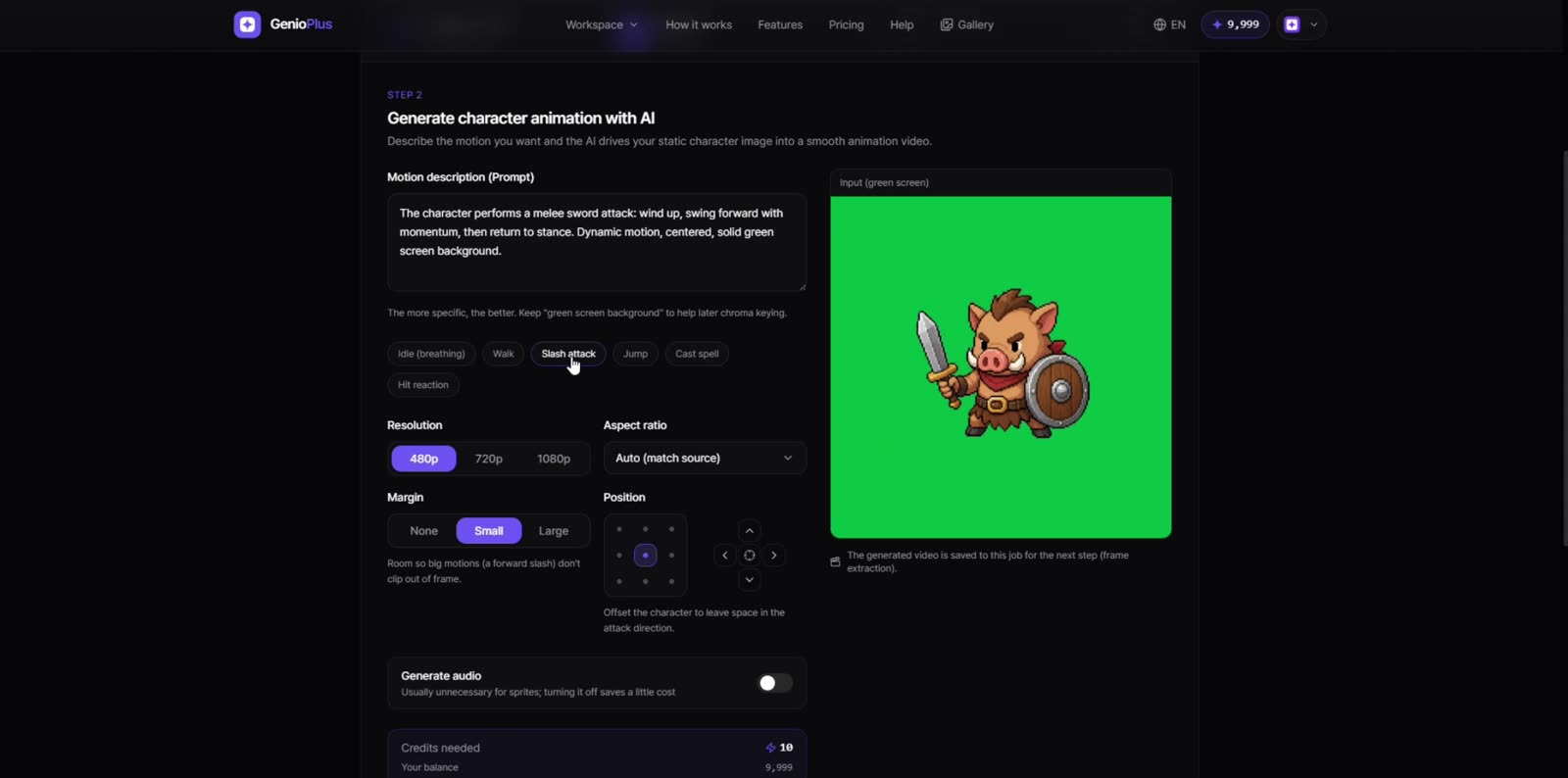
The six motion presets (idle, walk, slash, jump, cast, hit) fill in proven prompts. Writing your own? Describe the motion specifically and keep "green screen background" in the text. You can set resolution (480p free; 768p on paid plans), margin (so big motions don't clip out of frame), and position (leave room in the attack direction). If the end pose is already decided, open "Last frame" and upload it — the video interpolates from the step 1 image to that pose.
Step 3 — Frame extraction and keyframe strategy
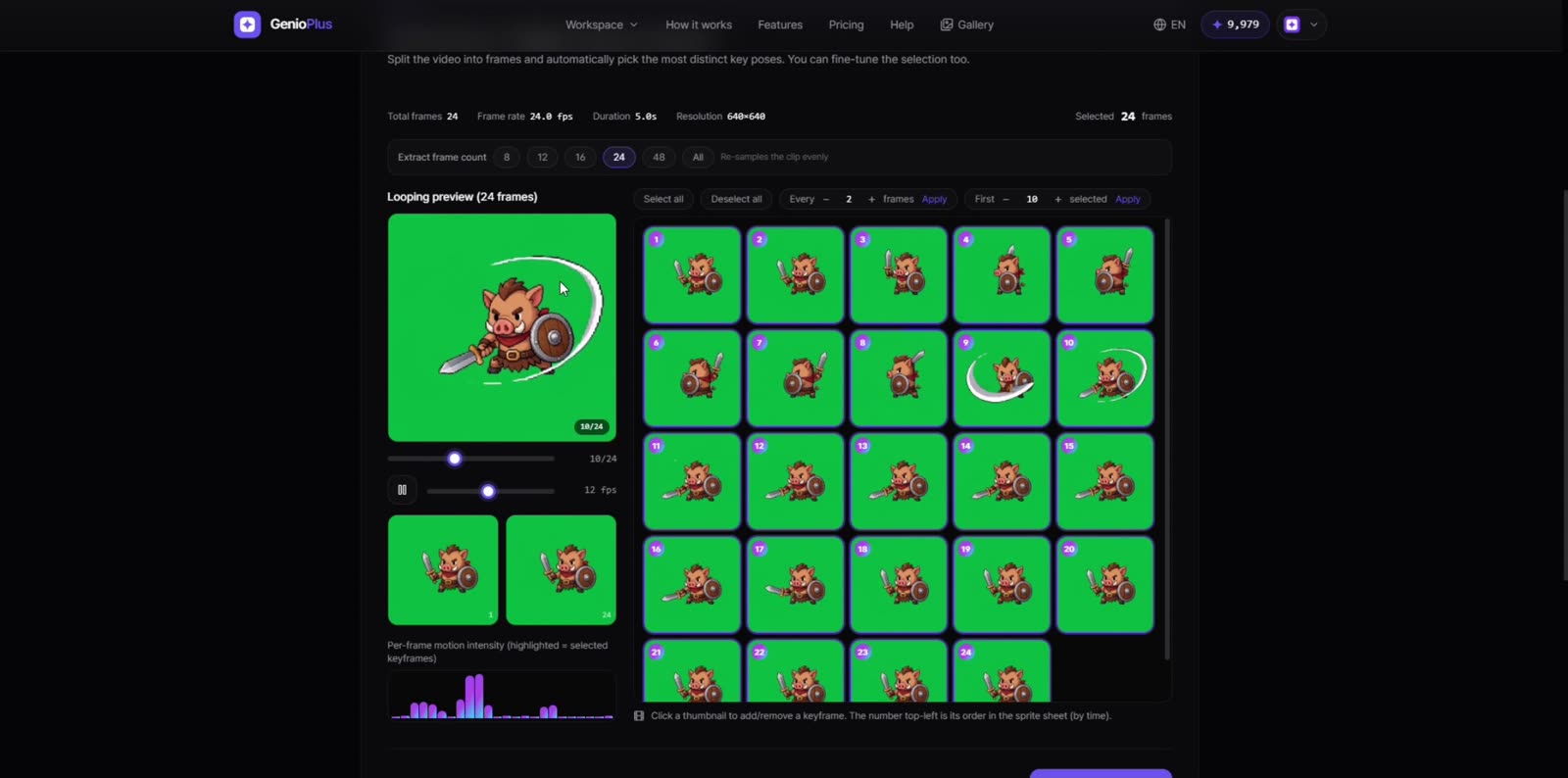
Choose how many frames to extract (8 to all) and hit "Extract & analyze". Two selection strategies: "Distinct" favors frames with the largest pose difference (great for attacks and other uneven motions), "Uniform" picks evenly by time (great for steady loops like walking). The graph below shows per-frame motion intensity, and you can click thumbnails to add or remove keyframes manually. If your loop pops, pick start and end frames with similar poses.
Step 4 — Green cleanup and transparency
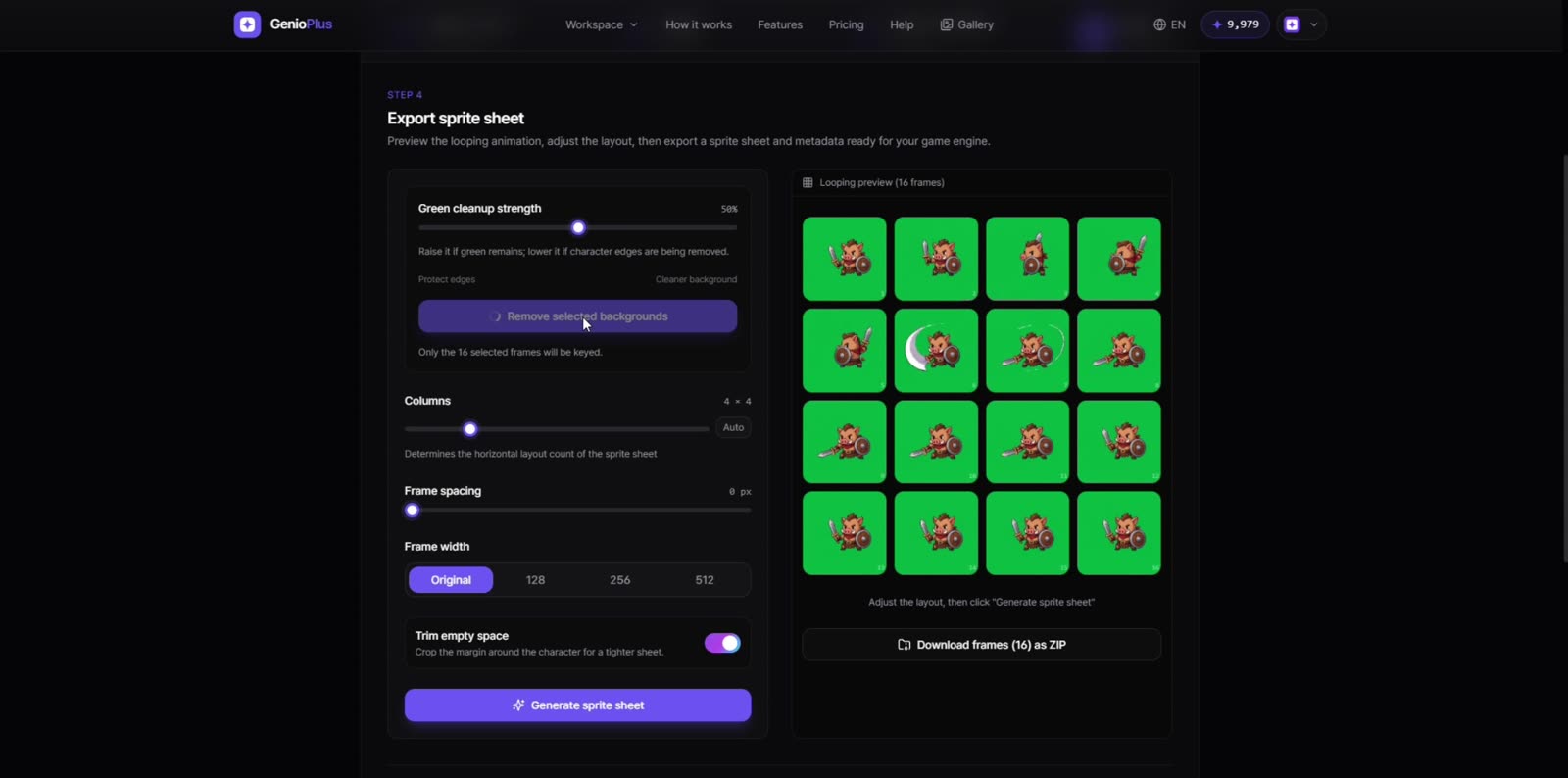
"Remove selected backgrounds" keys only your selected frames to transparent PNGs. Raise "Green cleanup strength" if green remains; lower it if character edges get eaten. If a single frame is stubborn, open the frame editor and clean just that frame with the wand or eraser.
Layout and export
Set columns (horizontal layout count), frame spacing, and frame width (128/256/512/original — larger sizes on paid plans). Turn on "Trim empty space" to crop the margin around the character for a tighter sheet. After "Generate sprite sheet", download the PNG, the frames ZIP, and the metadata JSON (frame size, cols × rows, spacing) — the JSON maps directly onto slice settings in Unity or Godot.
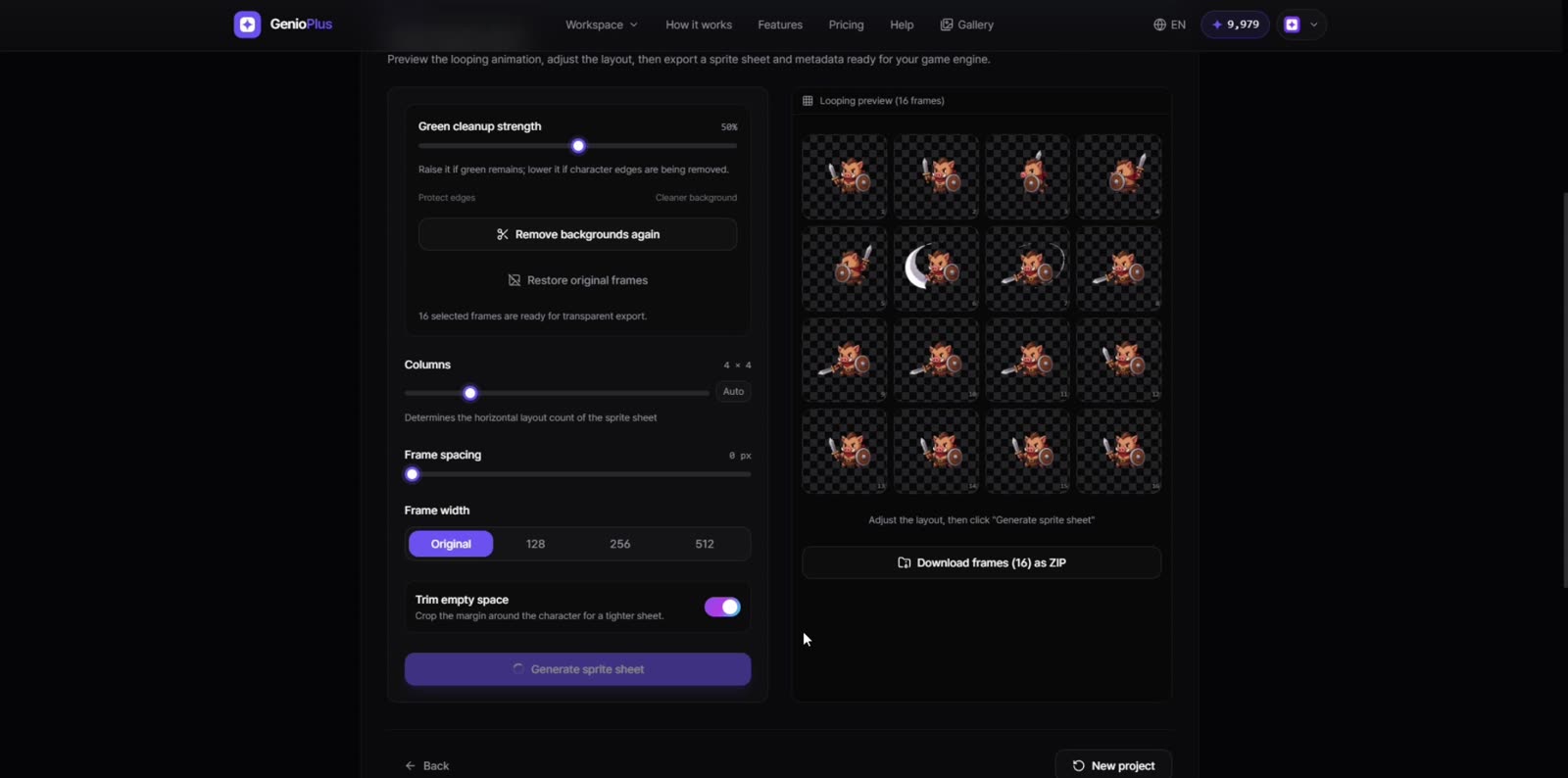
The click-to-move test
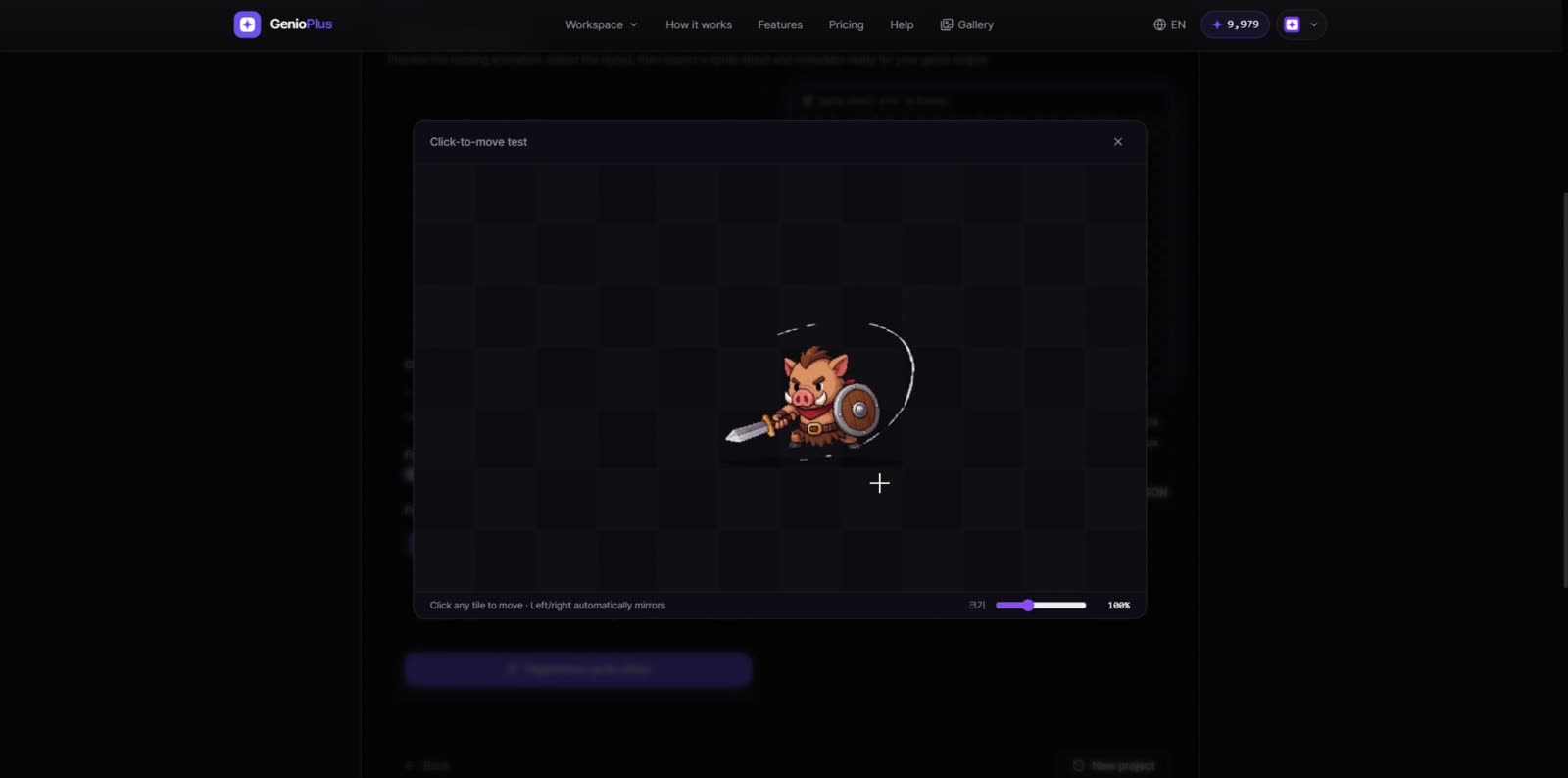
Before exporting, try the "Click-to-move test" to see the result like a game. Click a tile and the character moves there, mirroring automatically — the fastest way to judge whether your walk loop feels right.
Ready to try it yourself?
Open the tool